
Edge Workspaces 作者: elec0
Effortlessly organize and manage multiple projects or tasks by saving and restoring entire browsing sessions.
28 个用户28 个用户
扩展元数据
屏幕截图
关于此扩展
Edge Workspaces empowers Firefox users with advanced tab management:
Install Edge Workspaces to take control of your tabs and boost your productivity.
Ad-free and free to use, forever!
This extension is open source. Check out the GitHub repository: https://github.com/Elec0/chrome-edge-workspaces
Custom order is saved per browser profile and travels with workspace exports. New workspaces appear at the end. Turn on Enable debug tools in Settings to show the position confirmation after each move.
- Preserve context: Save and restore entire browsing sessions
- Reduce clutter: Keep your browser organized by project or task
- Improve focus: Easily switch between different work contexts
- Automatic saving: Never lose your place with continuous workspace updates
Install Edge Workspaces to take control of your tabs and boost your productivity.
Ad-free and free to use, forever!
This extension is open source. Check out the GitHub repository: https://github.com/Elec0/chrome-edge-workspaces
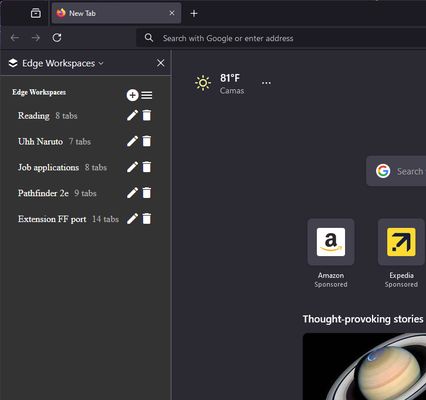
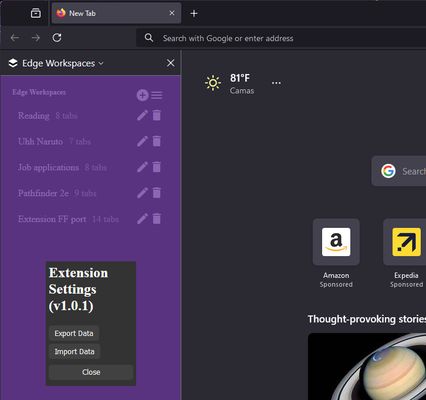
- Open the extension sidebar by clicking the icon in the toolbar and clicking 'Open Sidebar', or opening the sidebar normally
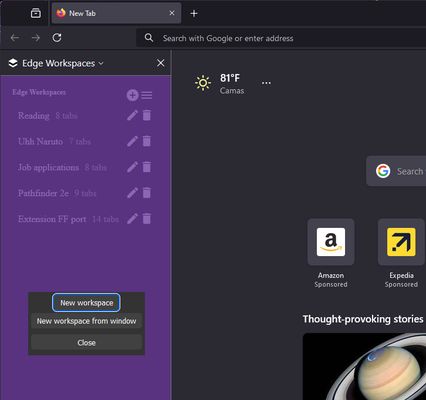
- Click the "+" icon to open the new workspace modal.
- Select either "New workspace" or "New workspace from window".
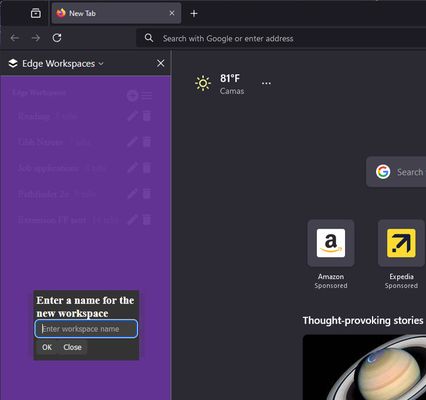
- Enter a name for the workspace.
- Click "OK".
- A new Chrome window will open with the New Tab page.
- All tabs in the current window will be saved to the workspace as you work.
- Close the window when finished.
- Open the extension sidebar.
- Click on a workspace to open it.
- The saved tabs will be opened in a new browser window.
- Click the trashcan icon to delete a workspace.
- Click the pencil icon to rename a workspace.
- Open the extension popup.
- Click the hamburger icon to open the settings window.
- Click "Export" to save all workspaces to a file.
- Click "Import" to load workspaces from a file.
- Select the Reorder workspaces icon in the Chrome popup or Firefox sidebar.
- Drag a workspace by its handle, or focus its Move up or Move down control and press Enter or Space.
- Select the reorder icon again to exit reorder mode. Each move saves immediately.
Custom order is saved per browser profile and travels with workspace exports. New workspaces appear at the end. Turn on Enable debug tools in Settings to show the position confirmation after each move.
评分 3(1 位用户)
权限与数据
更多信息